Creating a New Invoice
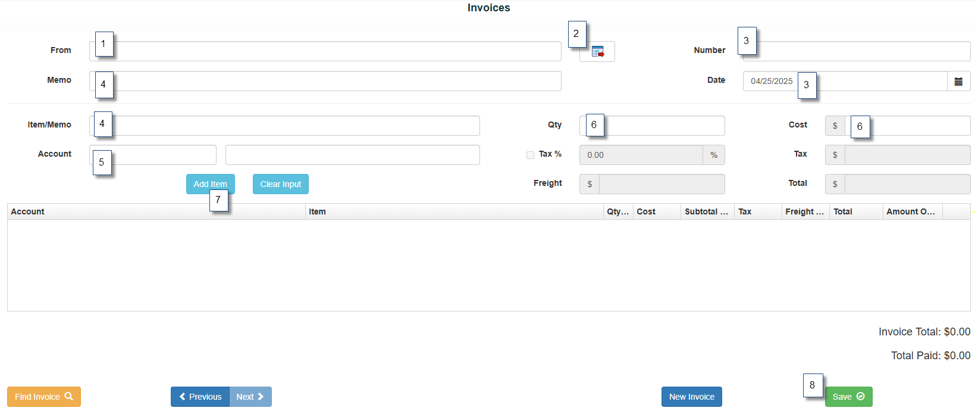
1. Enter the Vendor Name for whom the invoice is being created.
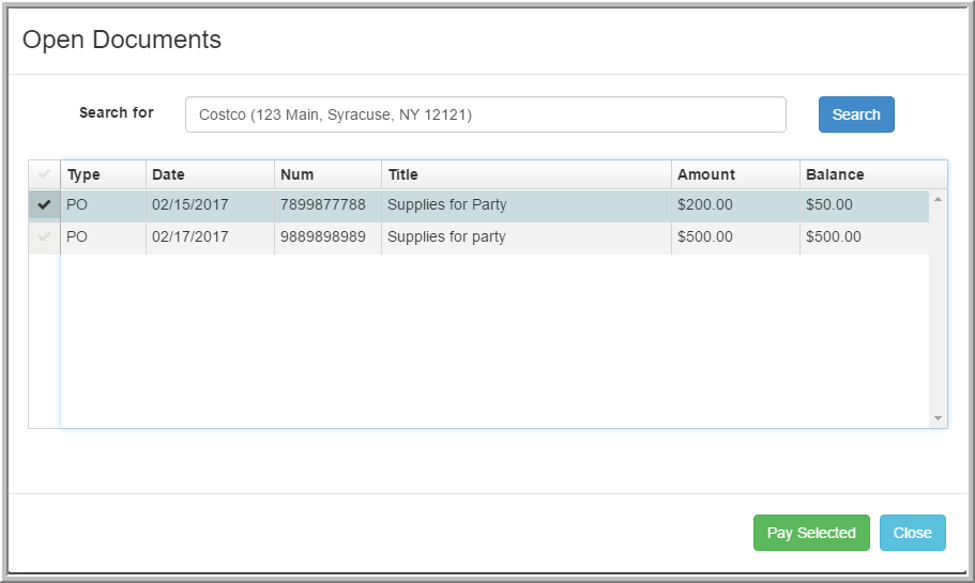
2. Open Documents box will populate if there are any Open POs associated with that vendor.
3. Enter the Invoice Number and update the Invoice Date if needed.
*Note: The system will alert you if the invoice number has already been used and will prevent duplicate entries.
4. Add a Memo. The same memo can also be used in the Item/Memo field
5. Enter the appropriate Account.
6. Enter the Quantity or Cost, whichever is applicable.
7. Click Add Item.
8. Click Save to complete the invoice entry.
Data pulled from a PO can be edited, if needed, in the Qty, Cost, Tax, Freight, and Total fields
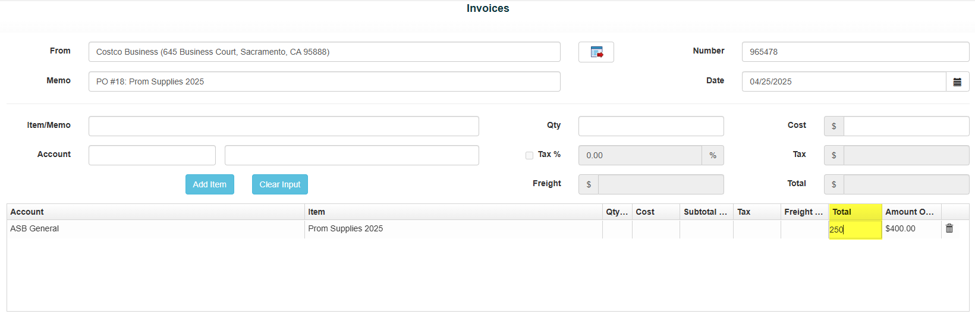
*Note: The Previous button allows you to scroll back through existing invoices.
*Note: The Find button lets you search for saved invoices.
*Note: If the PO has a remaining balance after the invoice is saved, the system will prompt you to close it, if desired.
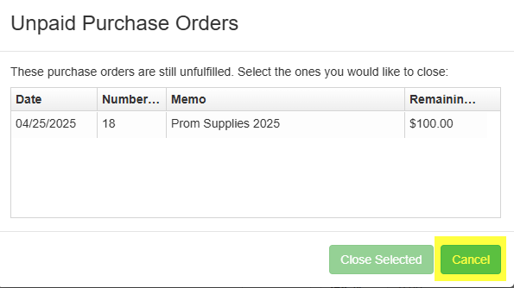
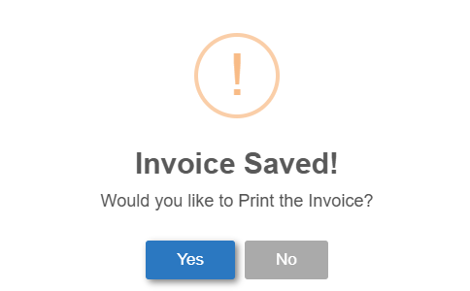
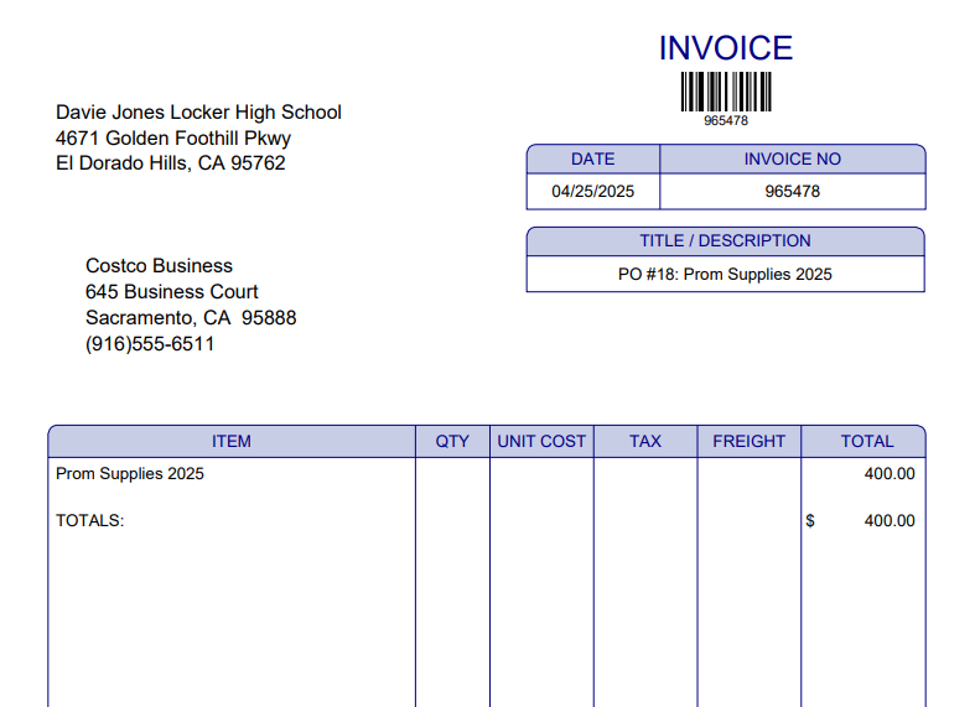
9. Confirm to Save and Print Invoice