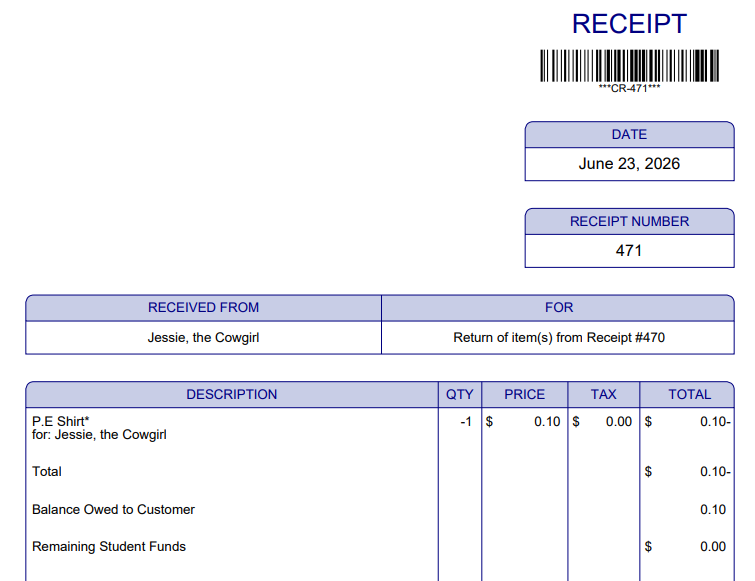
ASBWorks offers the capability to issue returns on items that have already been paid for. See below for step-by-step instructions on this simple process:
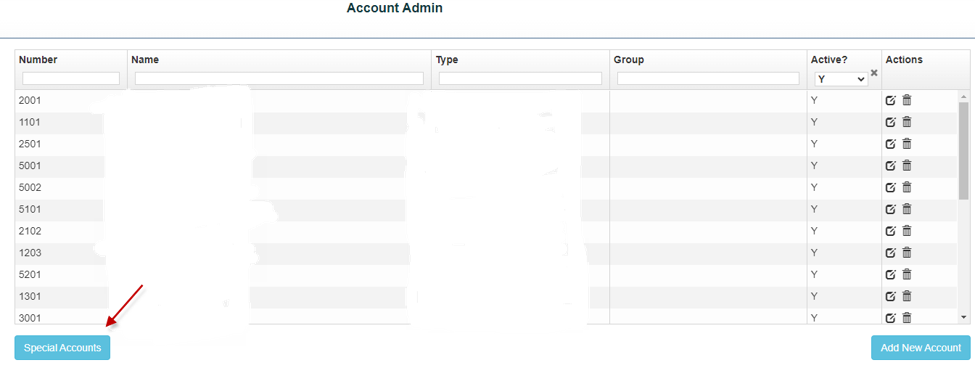
*Note: If the return is going to be refunded as a Check or Student Funds, head over to Admin> Account Admin> Special Accounts to set up these refund accounts.
1. Select "Special Accounts on the bottom left of the screen
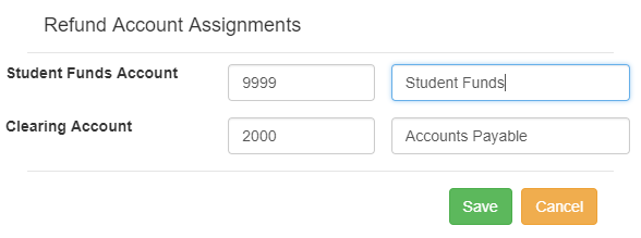
2. If allowing students to accumulate funds as credit on account, a Student Funds account (Trust type) needs to be created in Account Admin and added here
3. The Clearing Account is where Refund checks post to; generally, an Accounts Payable type account
To complete a return:
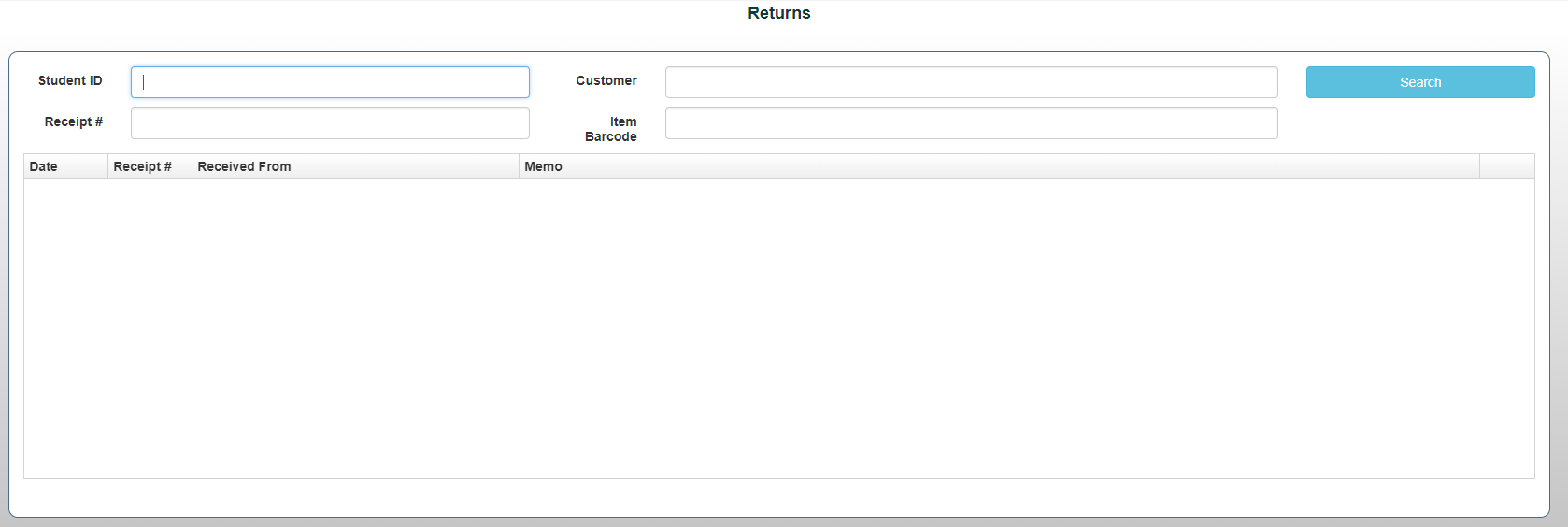
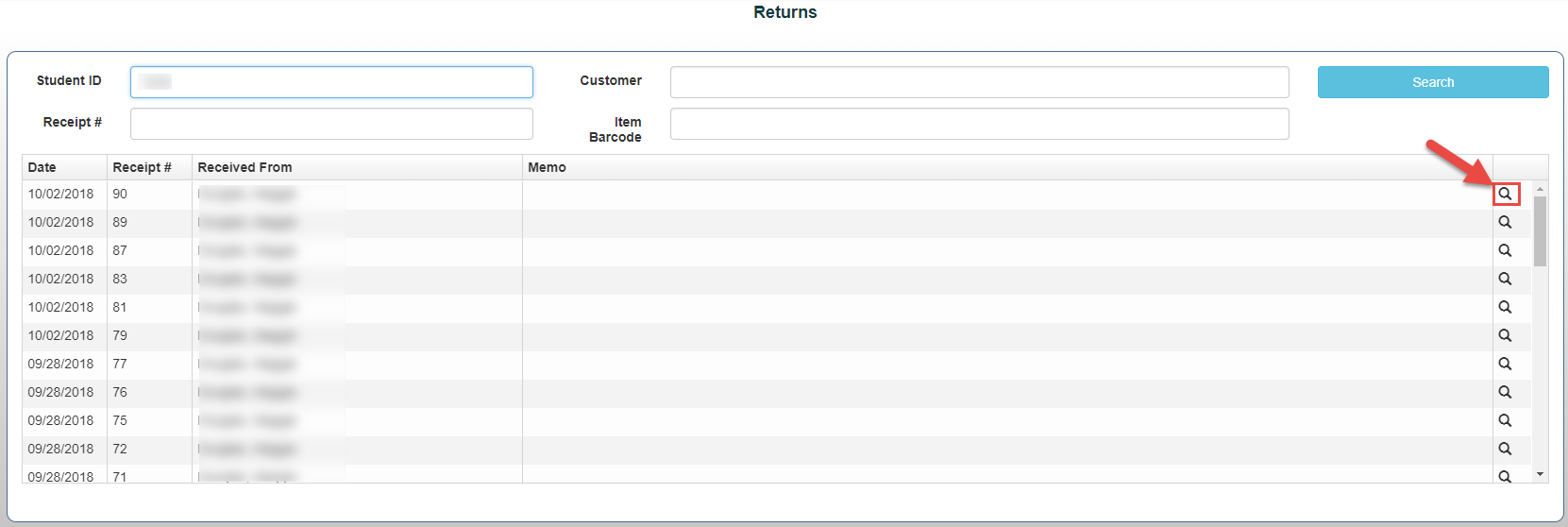
1. Select Receipts>Returns
2. Enter the Student ID, Customer Name, Receipt Number, or Item Barcode
3. Search
4. Select the receipt you’d like to return by clicking on the Magnifying Glass icon next to the receipt.
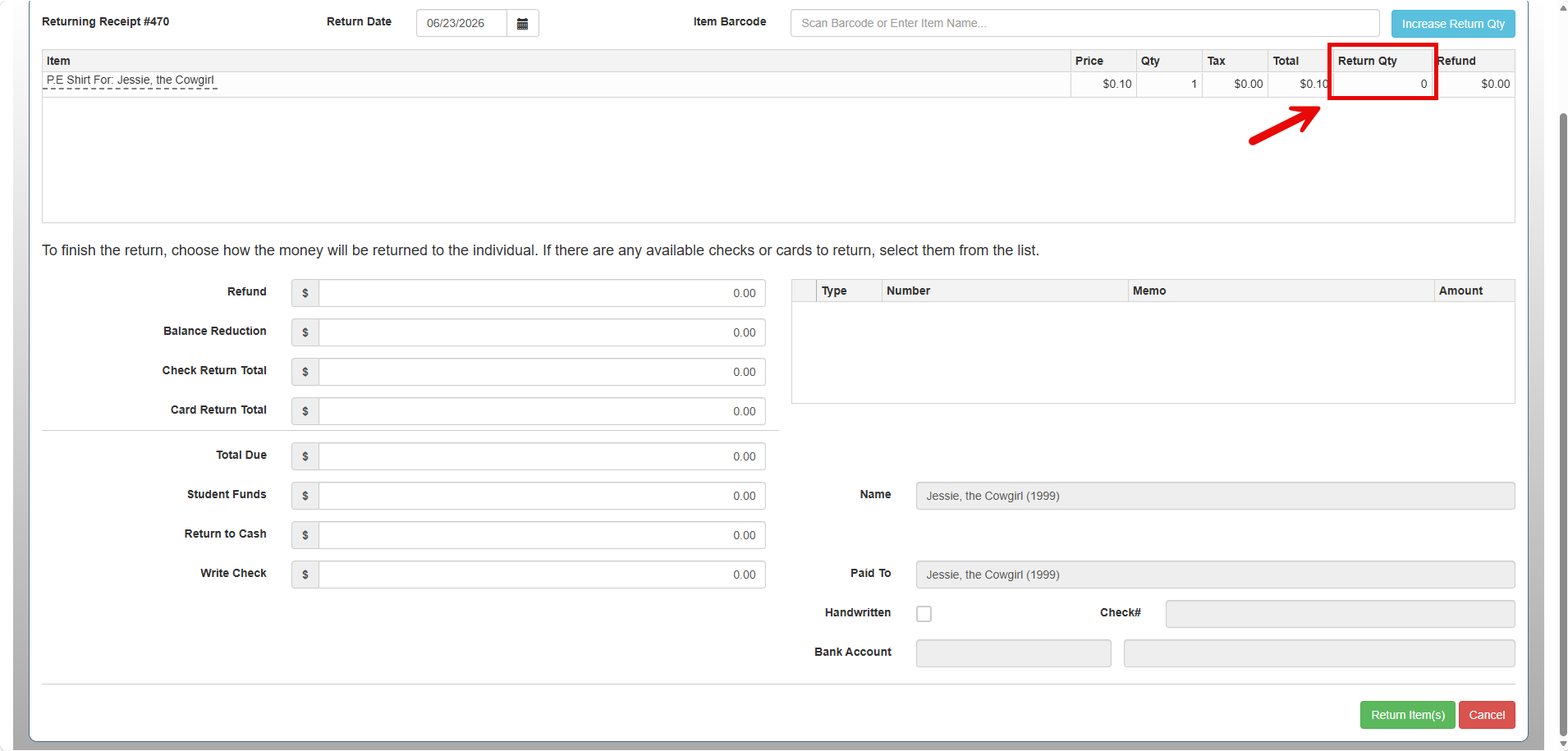
5. Enter the quantity to return in the Return Qty box for each of the items on the receipt to return.
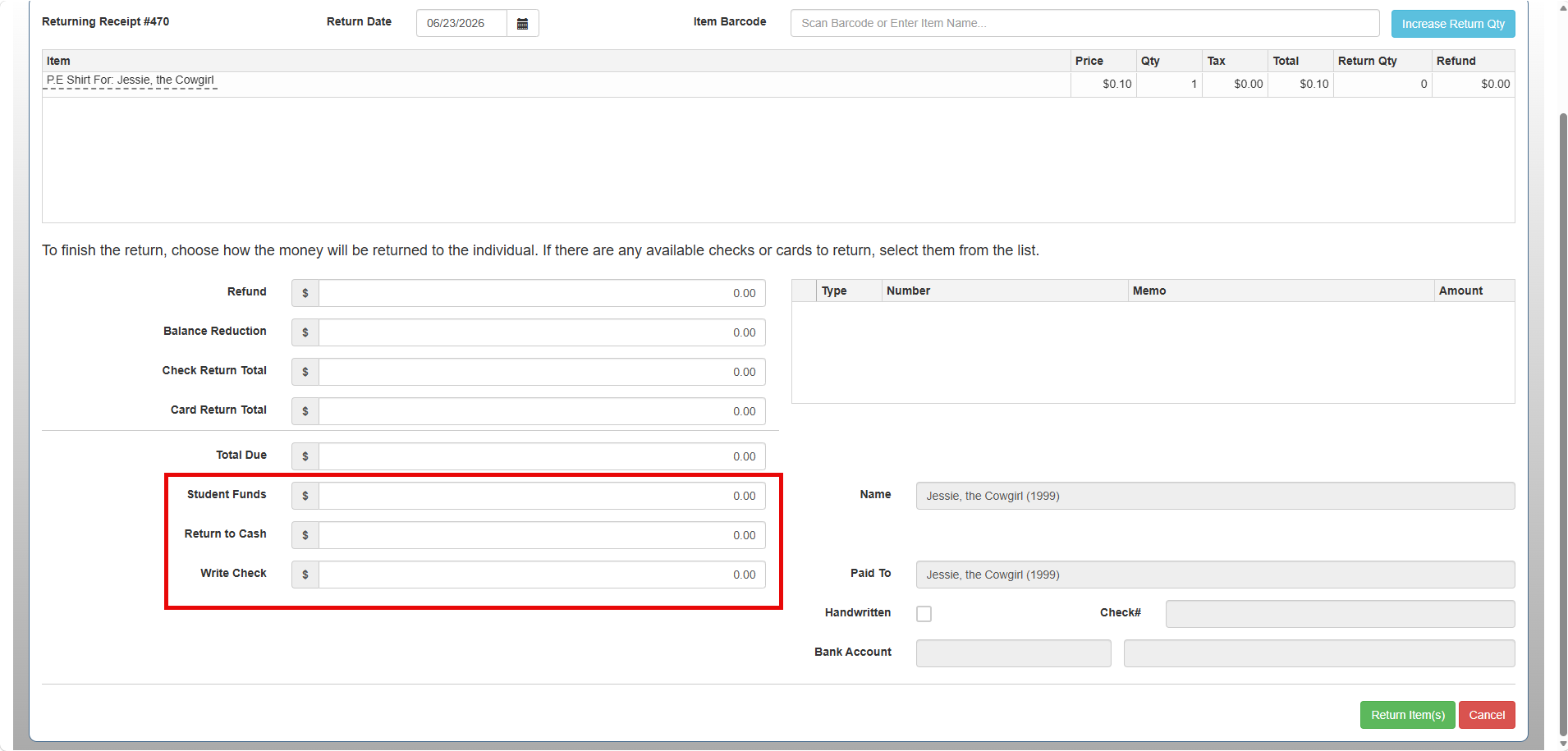
6. Enter the return amount into either the Student Funds box, Return to Cash or Write Check, depending on how you wish to return the funds. *Note: You may return by splitting the funds, i.e. by Cash and Student Funds.
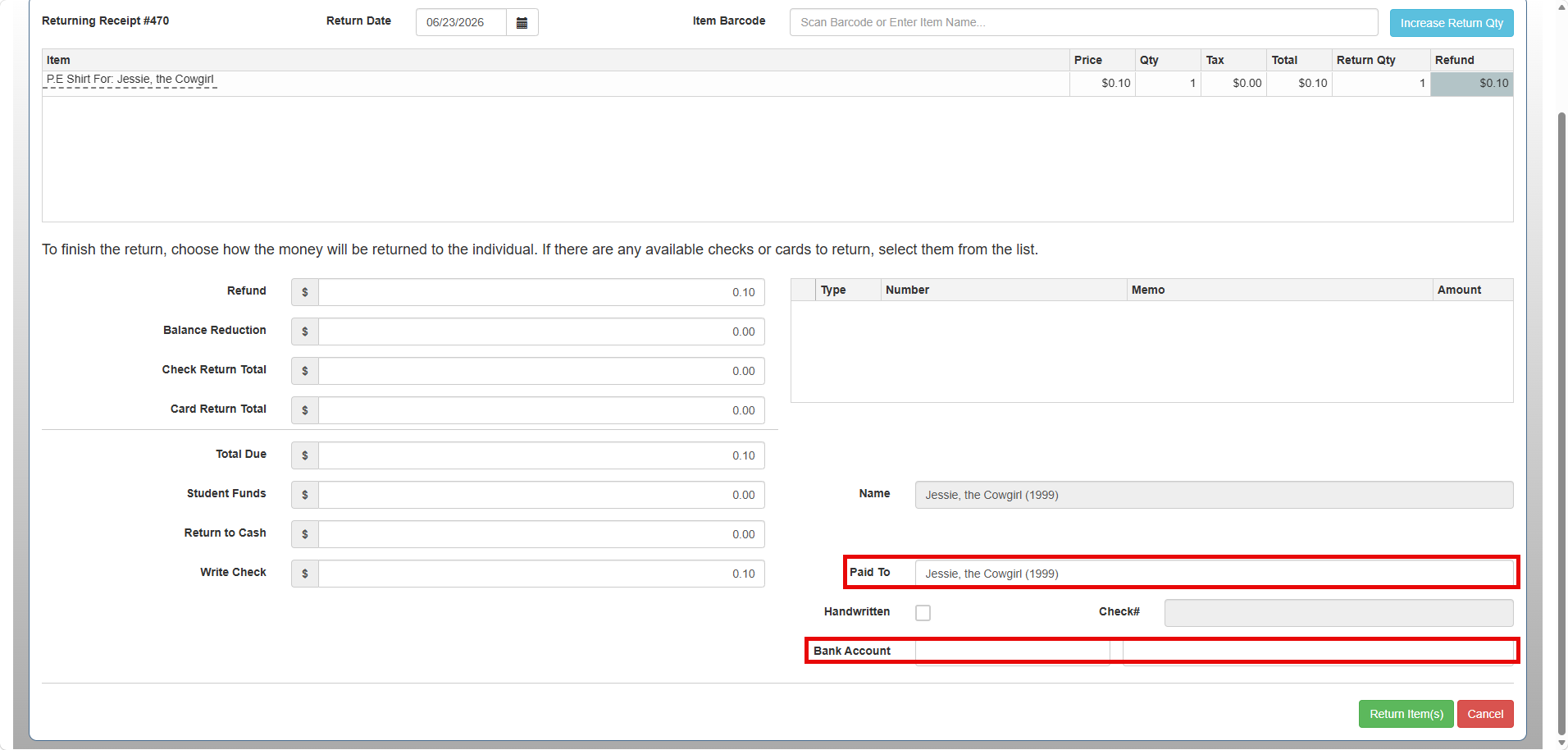
7. For a check return the system will generate the check for you automatically.
- You may change the name in the “Paid To” field so the check will be made out to another individual instead of the student.
- If using a handwritten check, select the "Handwritten?" box and enter the check number. If printing a check, leave the "Handwritten?" box unchecked. The check will then go to "Print Checks". *Note: If the original transaction was paid with a check and the check has not yet been deposited, it will appear in the "Checks on Hand" box. This will allow you to return the original check to the customer as their refund.
- Select a bank account for the check to be paid from.
8. Select Return Item(s) button. A printable receipt will then open up, and the return process is complete.