The Deposit History application is a very useful tool to go back and view all of the deposits that you have made.
From the Receipts tab Select “Deposit History”
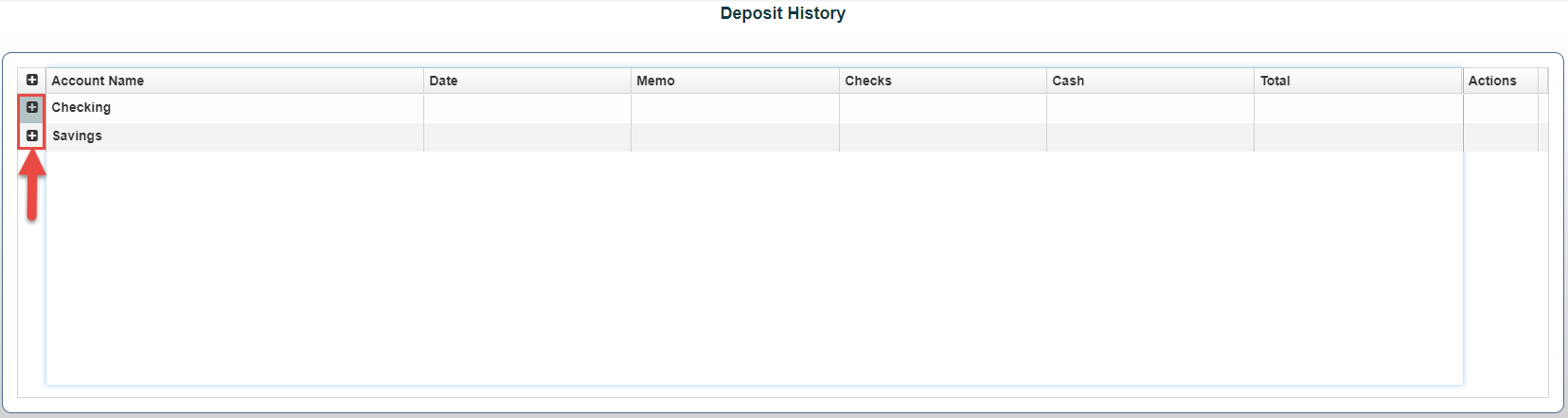
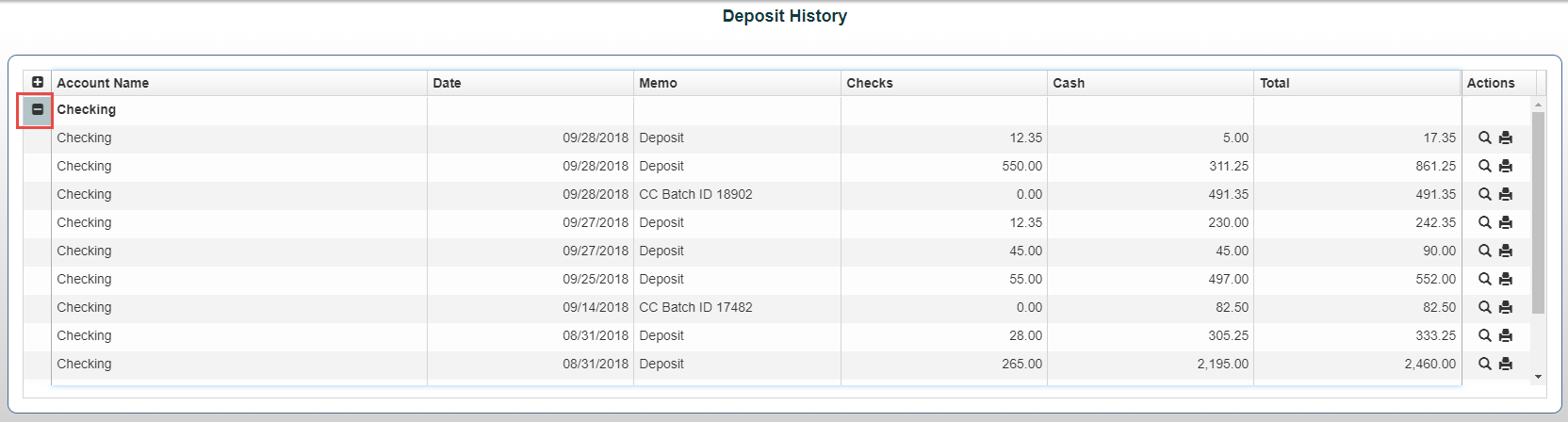
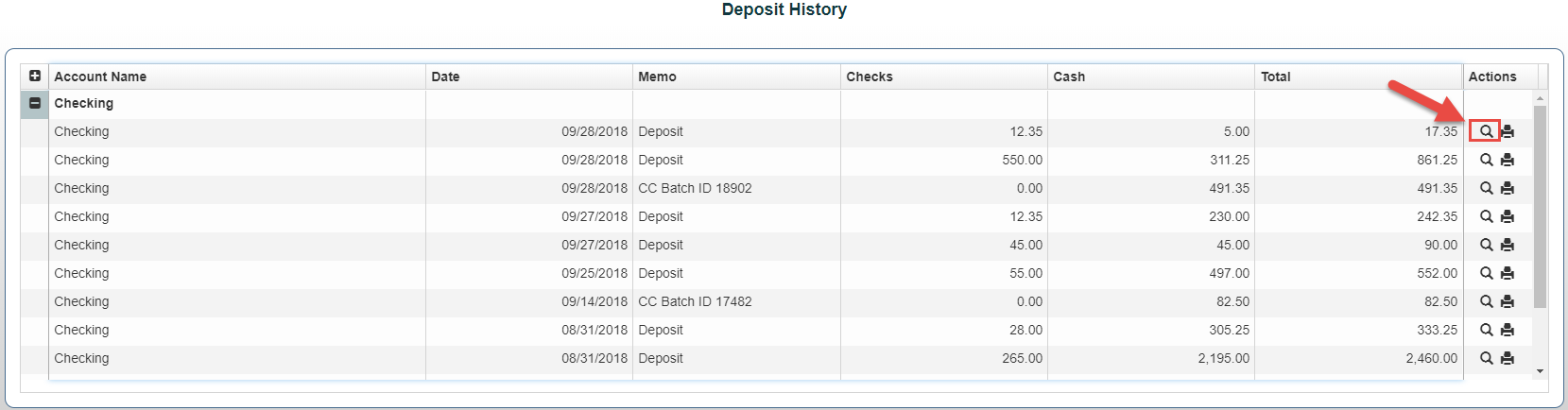
- Select the bank account that you would like to view the deposits for by clicking on the “+” sign next to the account
2. To View the Deposit on the screen select the Magnifying Glass icon next to the deposit date you wish to view
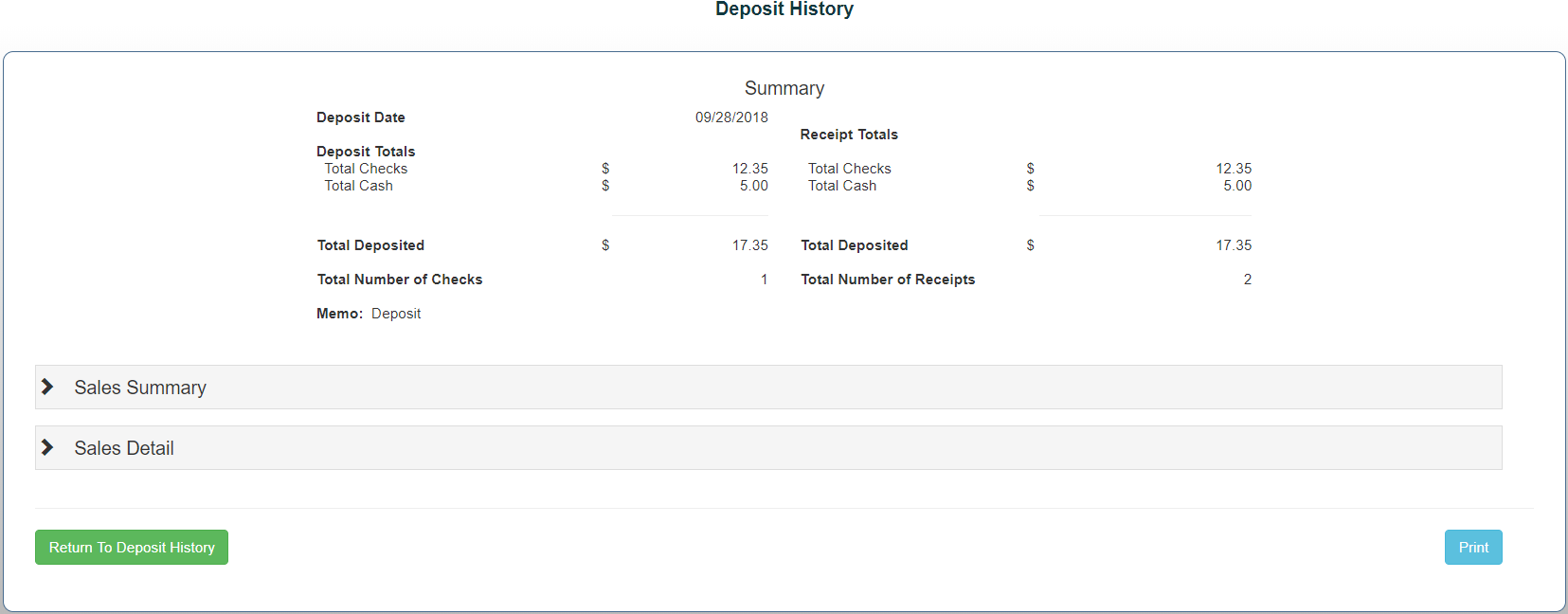
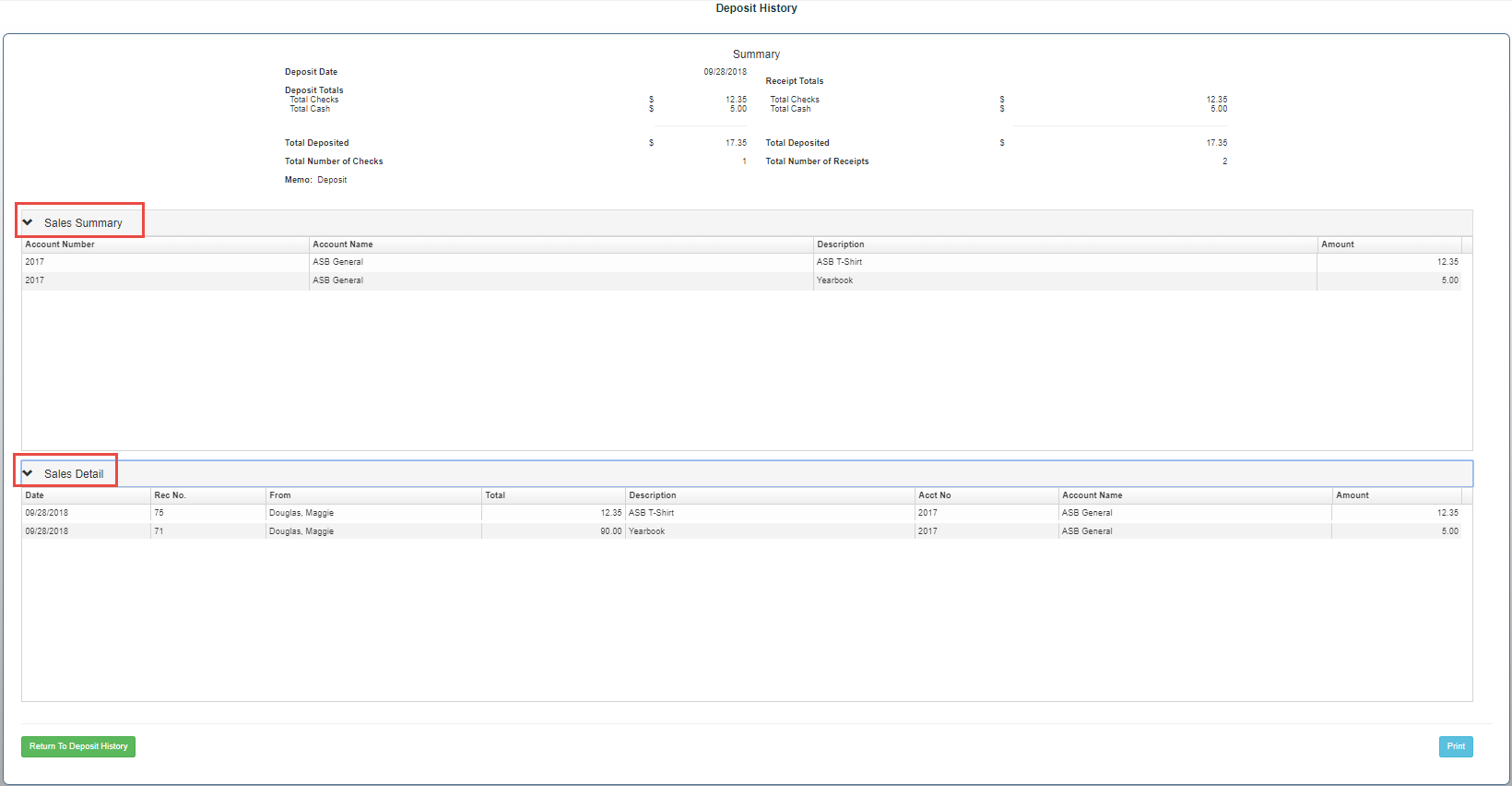
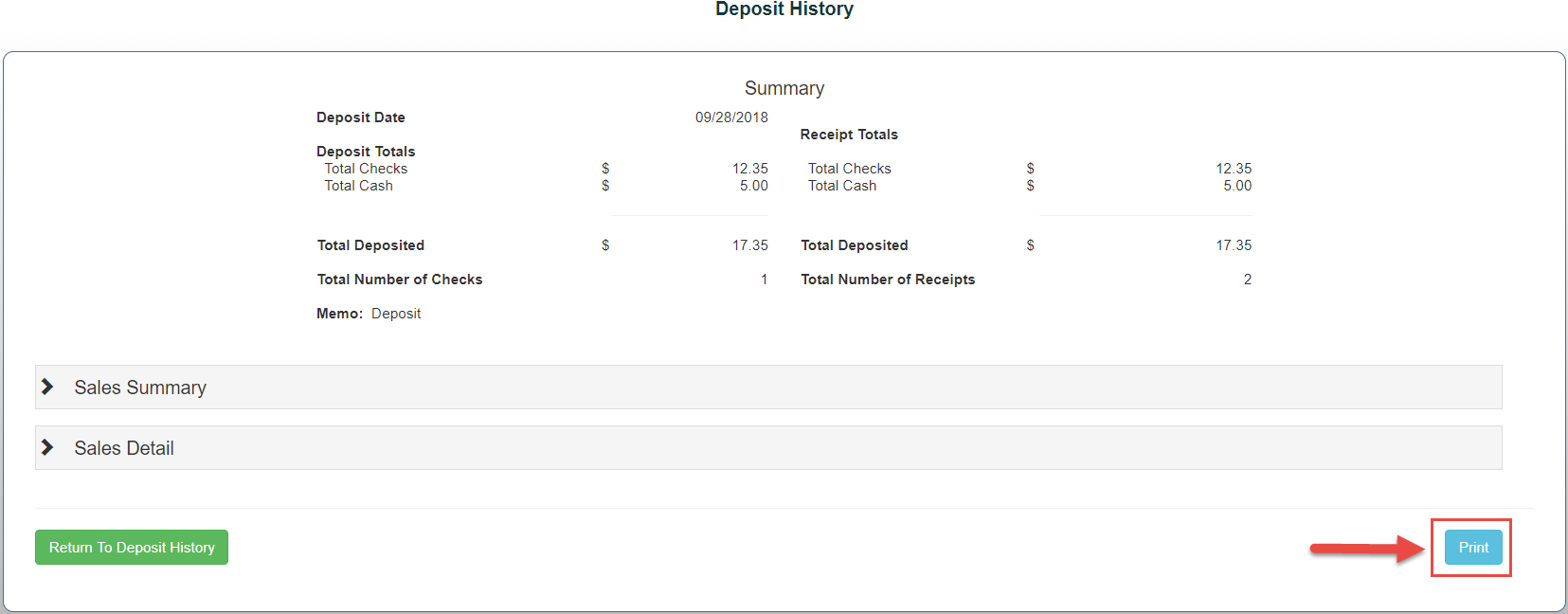
3. Click on the Sales Summary/Sales Detail to open these collapsible sections
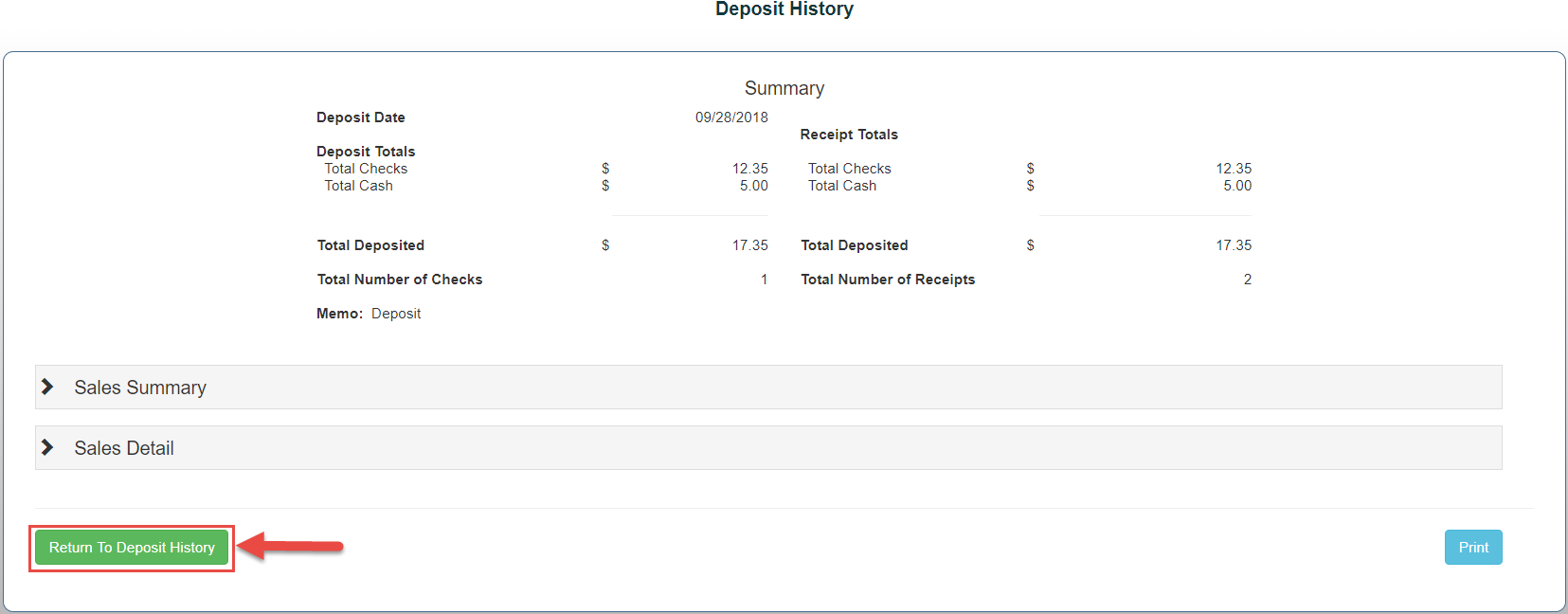
4. To Return to the main Deposit History screen, click the Return to Deposit History button on the bottom left of the screen
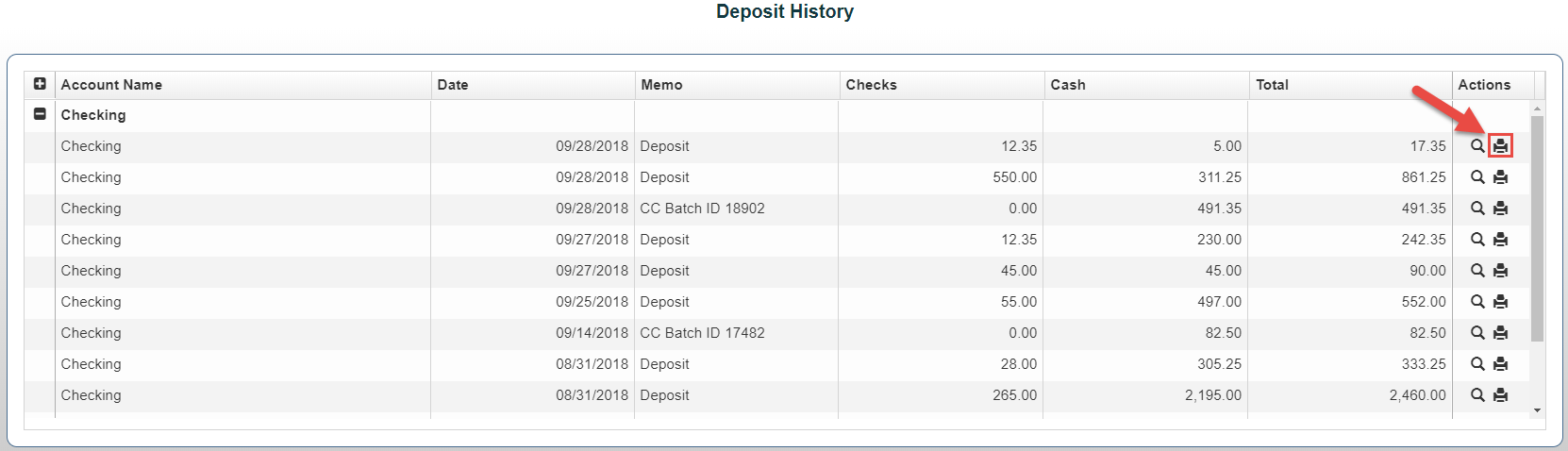
5. To generate a Deposit History Report, click on the Print button at the bottom right of the screen. OR on the Main Deposit History page select the Printer icon next to the Deposit Date
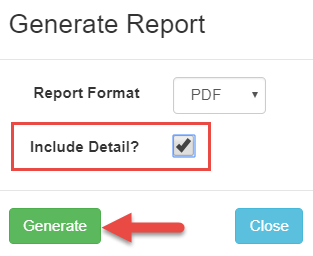
*Note: Check the Include Detail box to have receipt details included on report
OR