ASBWorks- Equipment Tracking
Print
Modified on: Mon, Dec 15, 2025 at 3:22 PM
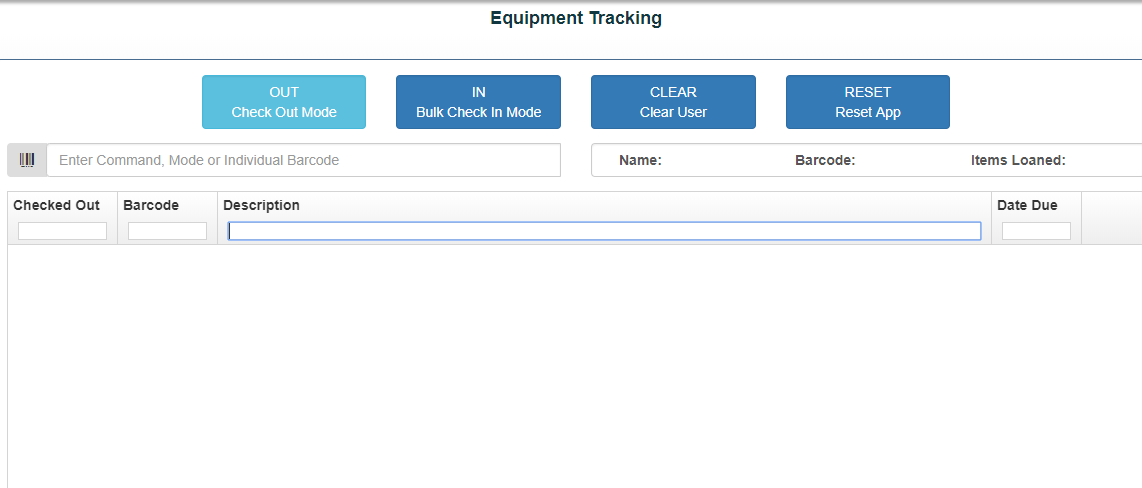
Equipment Checkout
- Enter the student’s last name or ID#.
- Press ENTER (only the Enter key works). This will add the student to the right-hand side.
- Enter the equipment name (for example, Football Gear).
- Press ENTER again to check out the item.
- A green success message will confirm the equipment has been checked out to the student.
Equipment Check-In
- Make sure Check-In mode is selected at the top.
- Enter the equipment item name.
- Press ENTER (only the Enter key works) to populate the equipment.
- You’ll see a list of all students who have this item checked out, along with return dates and status.
- Click the minus sign on the right to check in the item for the student.
Note
- In Check-In mode, the Clear User and Reset buttons will work and return you to the default Check-Out mode.
- These buttons do not work in Check-Out mode. To clear student names or equipment in Check-Out mode, you’ll need to refresh your screen.