Student records allow you to view and update the everyday actions of selected students. These actions include:
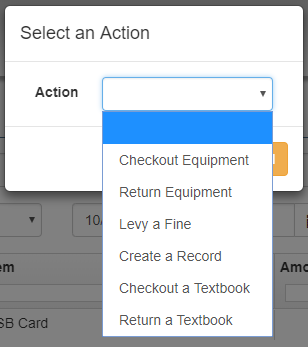
- Checkout Equipment
- Return Equipment
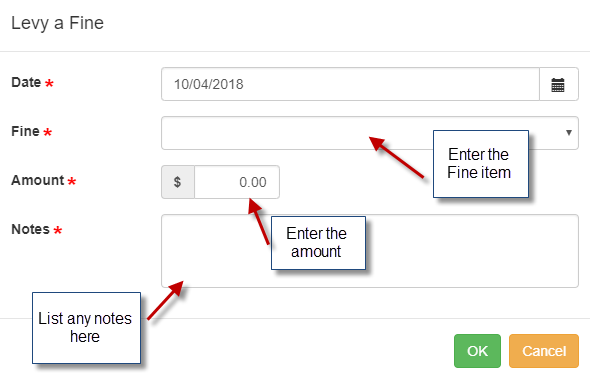
- Levy a fine
- Create a record
- Checkout a textbook
- Return a textbook
From the Tools menu, select Student Records
1. Select a student by either typing in the student's name, or student ID#
2. Choose a date range from the drop-down menu or manually enter the desired date
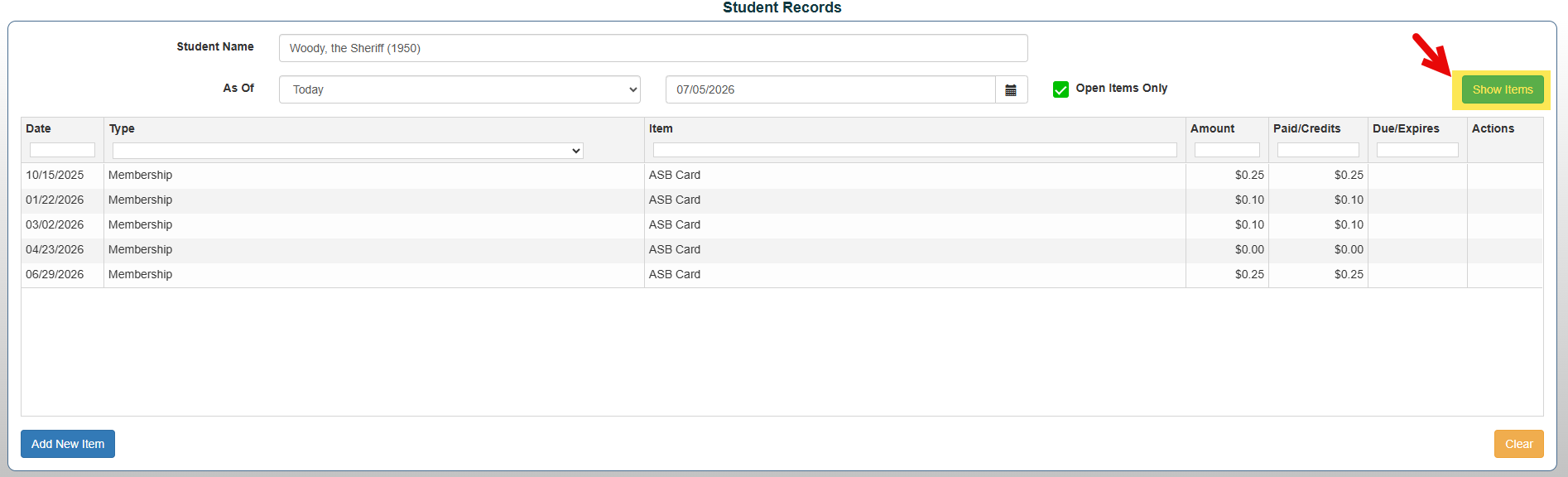
3. Select "Show Items" to view present actions
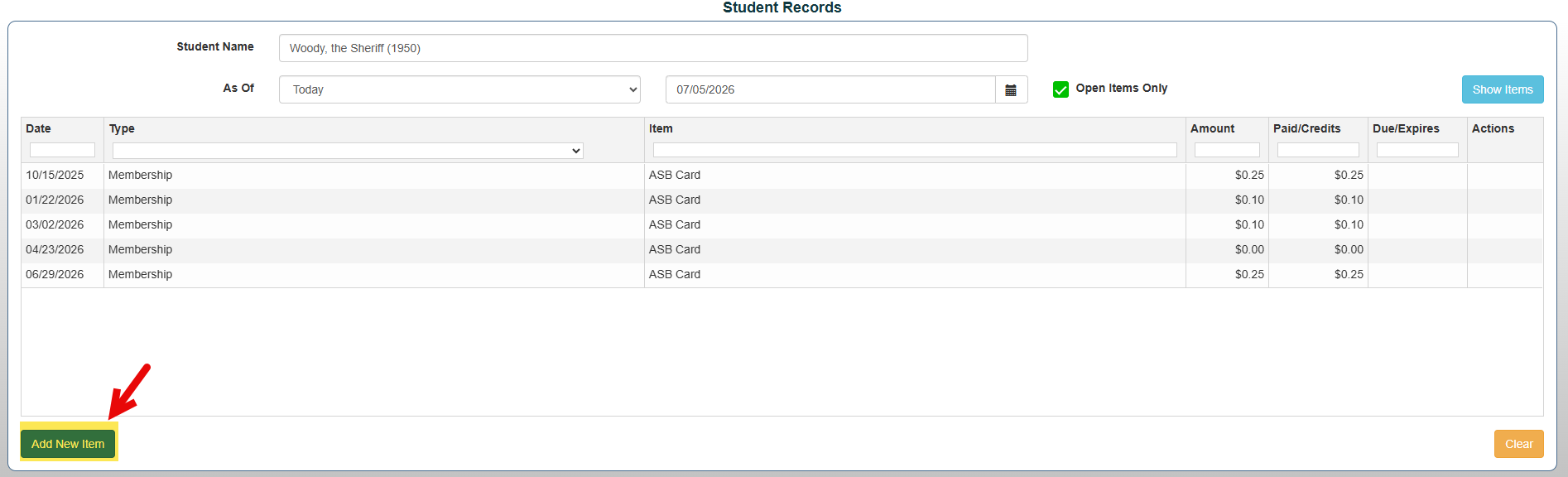
4. Select "Add New Item" to add a new transaction
5. Select an action from the drop-down and press "Ok"
6. Complete the required fields to finish the transaction
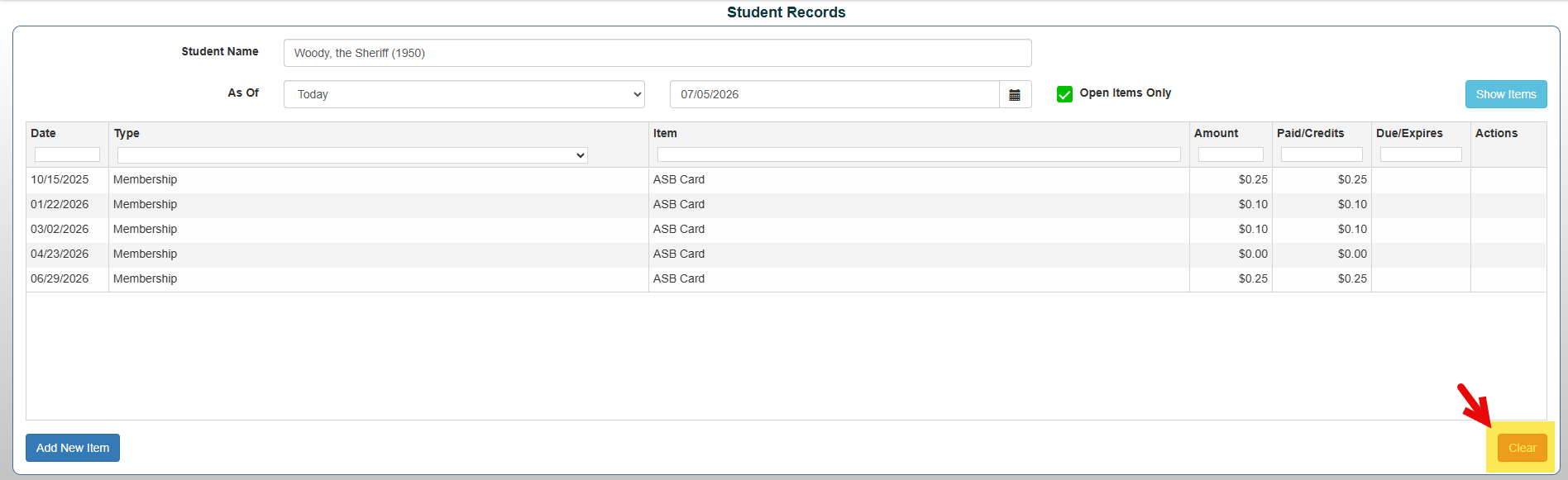
*Note: You can clear current actions by selecting "Clear" on the bottom right of the screen.