Note: This action can only be completed by the district designated as the OWNER for all school sites.
To verify whether you are listed as the OWNER for your district:
- Log in to the Graystep Merchant Dashboard.
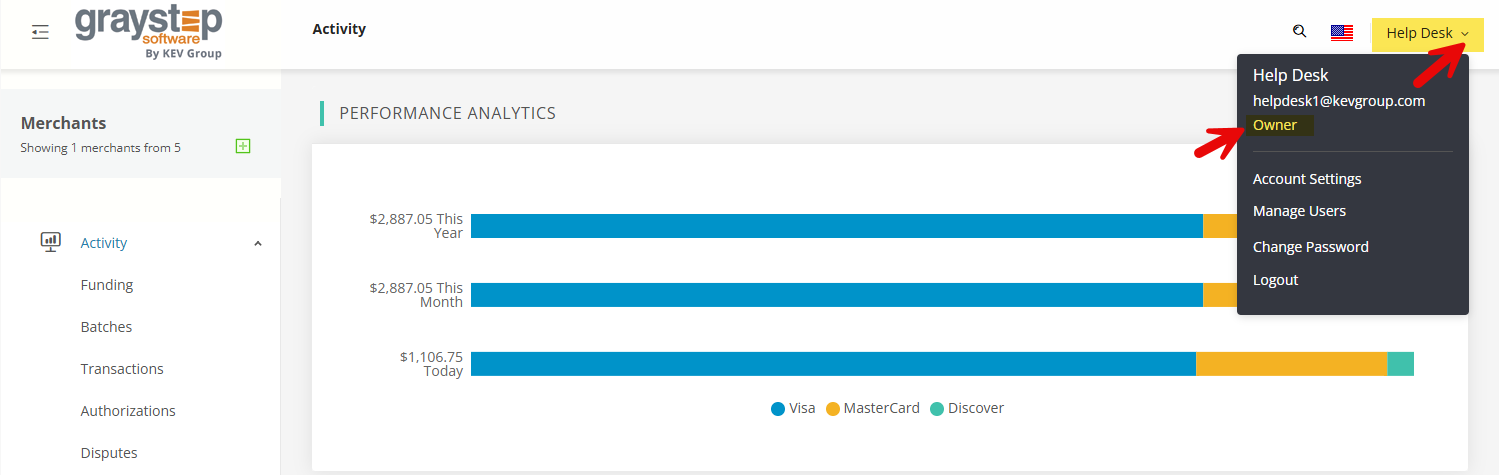
- In the top right corner, click the drop down arrow next to your name.
- Your name and email address will appear, along with your assigned role listed directly below.
- If your role displays OWNER, you will have the ability to grant access to your school sites.
*If you are not listed as an OWNER, you may need to reach out to your district office to request access or have them grant permissions on your behalf.
After you’ve confirmed that you are listed as the OWNER for your district, click on Manage Users. From there, you’ll be able to add new users or edit any existing users on your account.
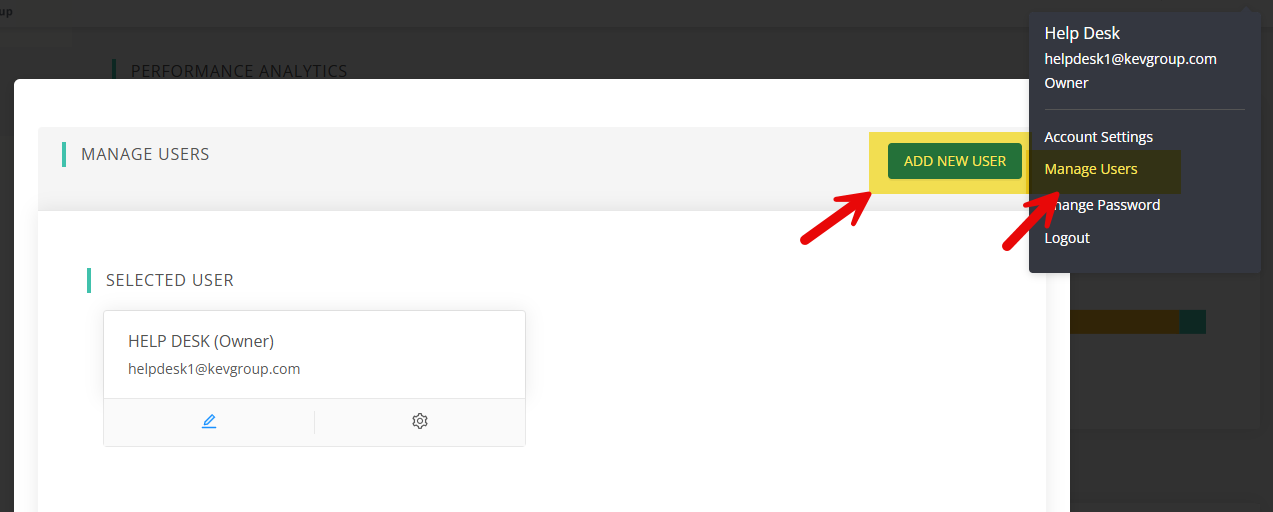
If the user you need isn’t already listed, go ahead and click Add New User to enter their information.
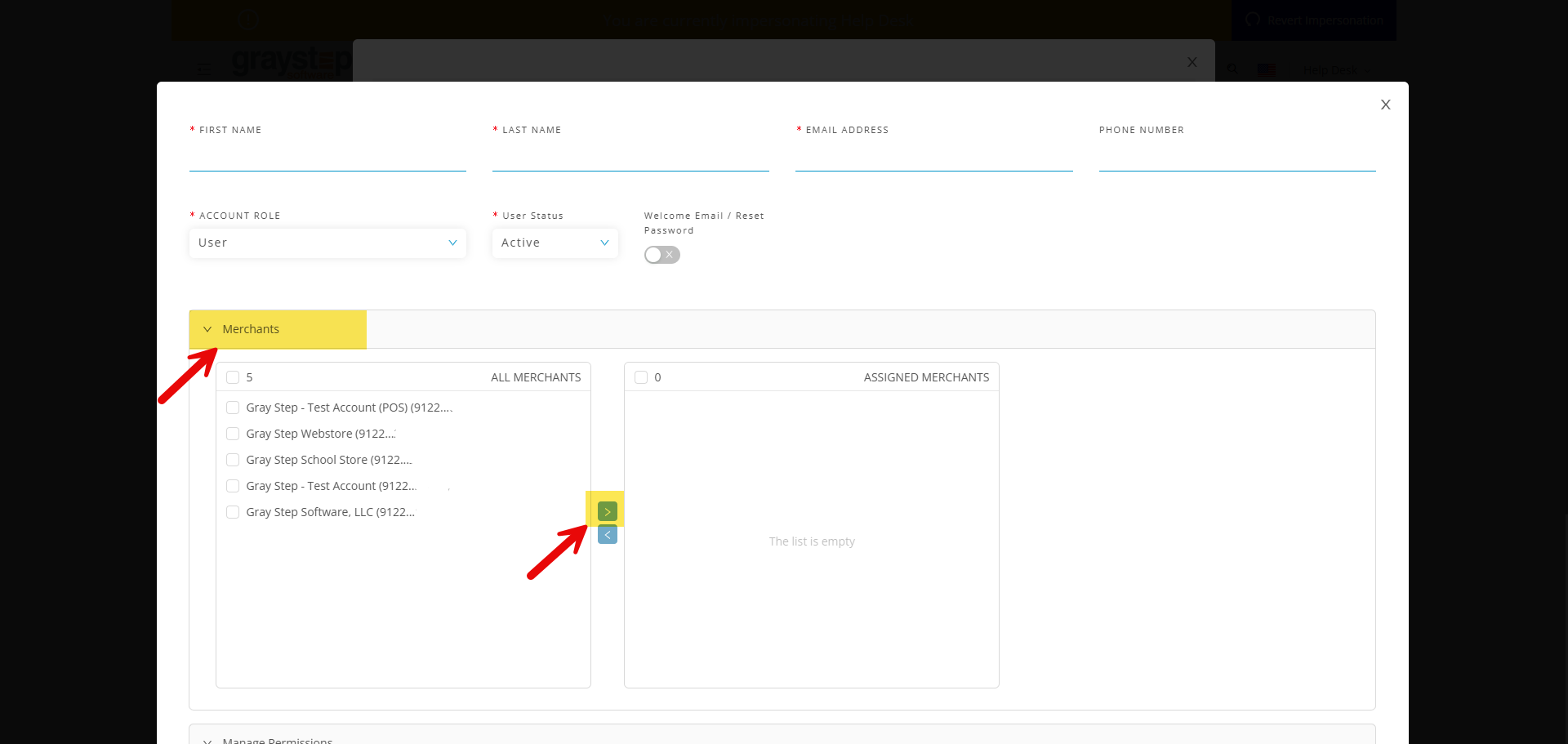
You’ll just need to fill in the following fields:
- First Name
- Last Name
- Email Address
- Account Role – this will always be User
- Status – this will always be Active
Make sure to toggle Welcome Email/Reset Password to the right so the new user receives a welcome email for them to register their account.
Under the Merchants tab, you’ll see a list of all the MIDs associated with your owner account. From here, you can choose which MID(s) you’d like to grant access to for the new user you’re adding.
Once you confirm the correct MID, simply move it to the Assigned Merchants section on the right by clicking the blue arrow located between the two merchant boxes.
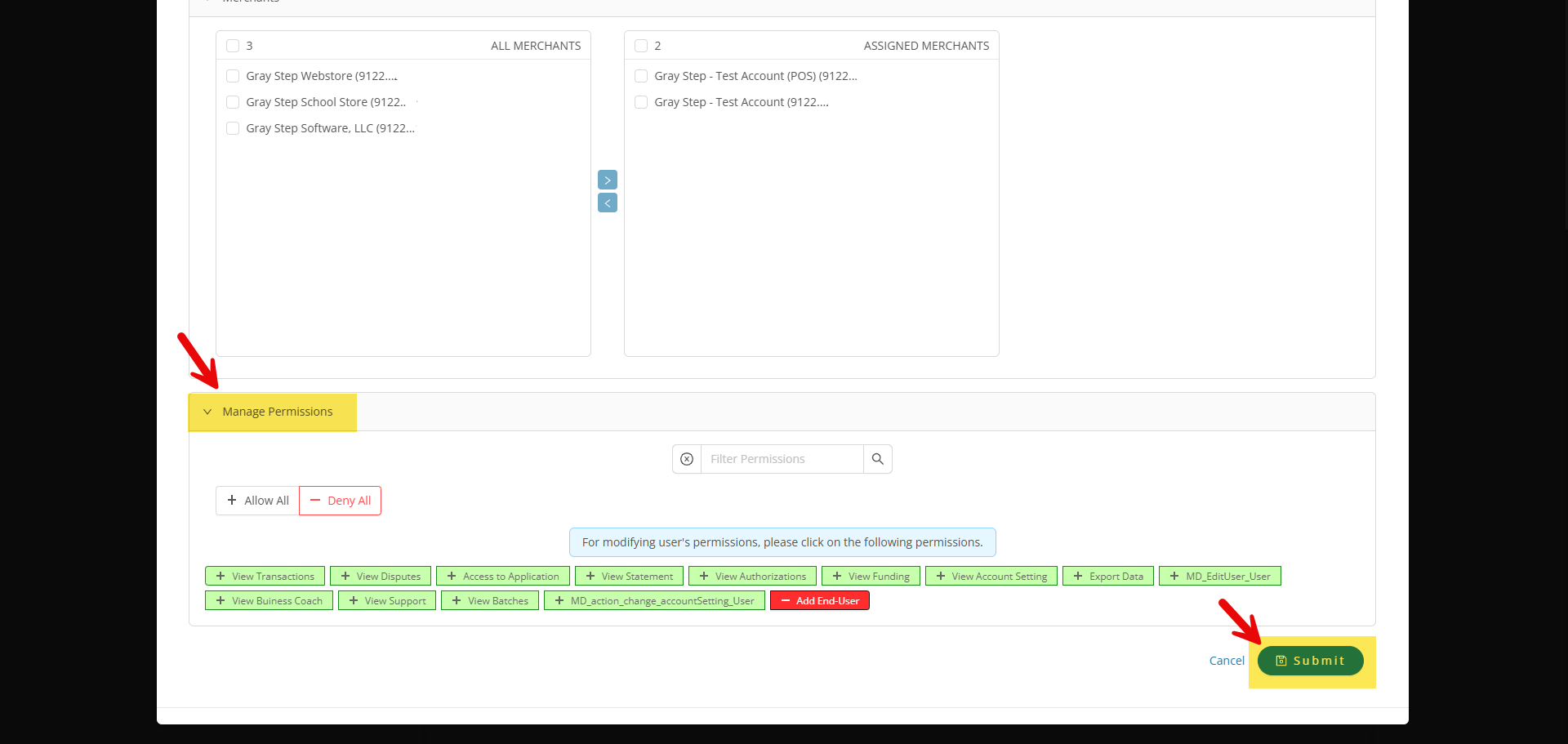
After selecting which MIDs you’d like to assign to the new user, you can also Manage Permissions to control what they’re able to do within the Merchant Dashboard.
Once you’ve made all your selections, click Submit. The new user will be added and automatically sent their welcome email, which includes everything they need to log in to the Merchant Dashboard.