
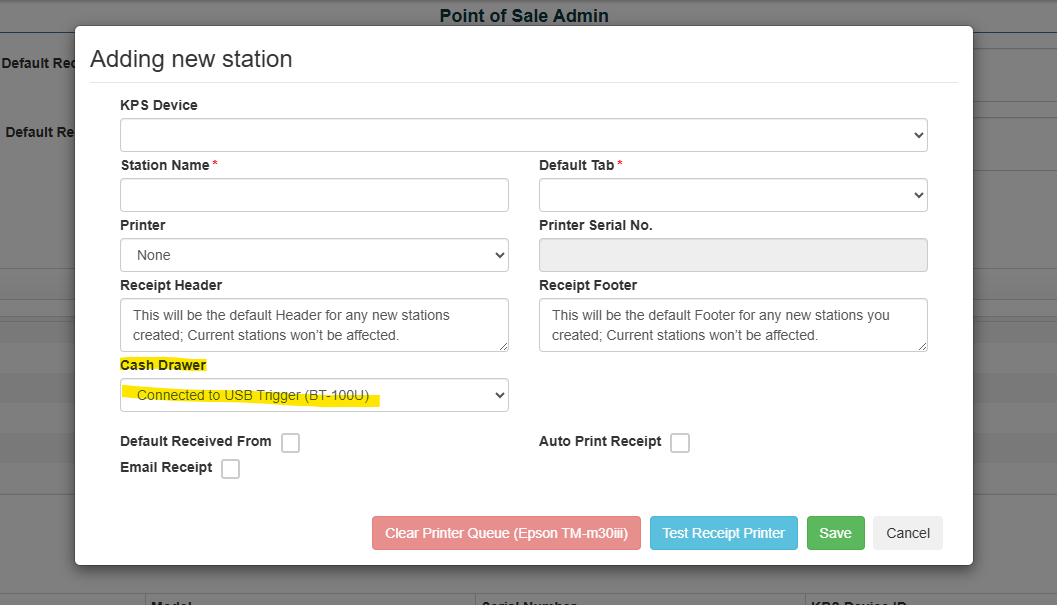
Step 2: DO NOT PLUGIN THE USB YET. Please go into “Point of Sale Admin”, select your station and click on “Test Receipt Printer”. This should print out a receipt on your KPS device, but you should receive an error asking to double check the USB connection for the cash drawer. Now plugin the USB and try again. This time a prompt should appear on the top left of the browser.
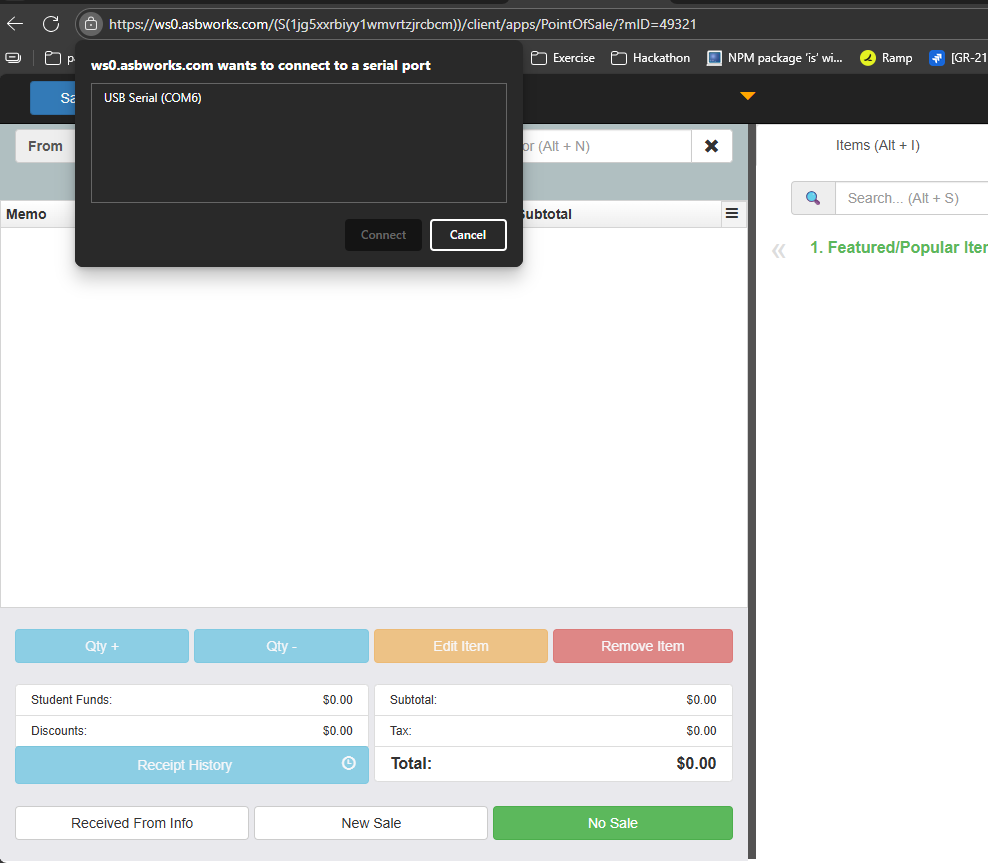
*If you do not see your USB serial port follow the instructions and review the attachment below:
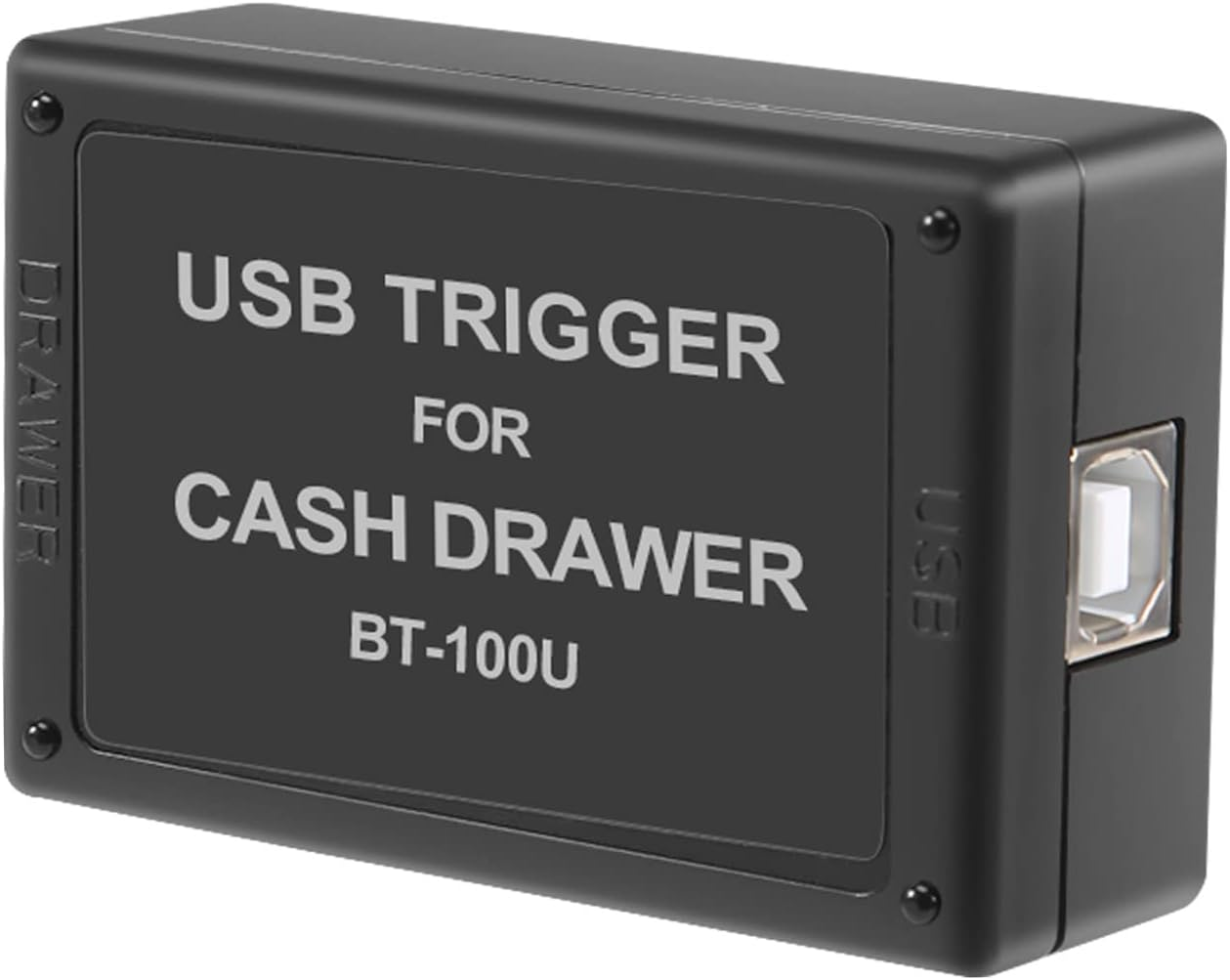
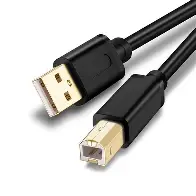
- USB A to PC and USB B to the dongle. It looks like this:
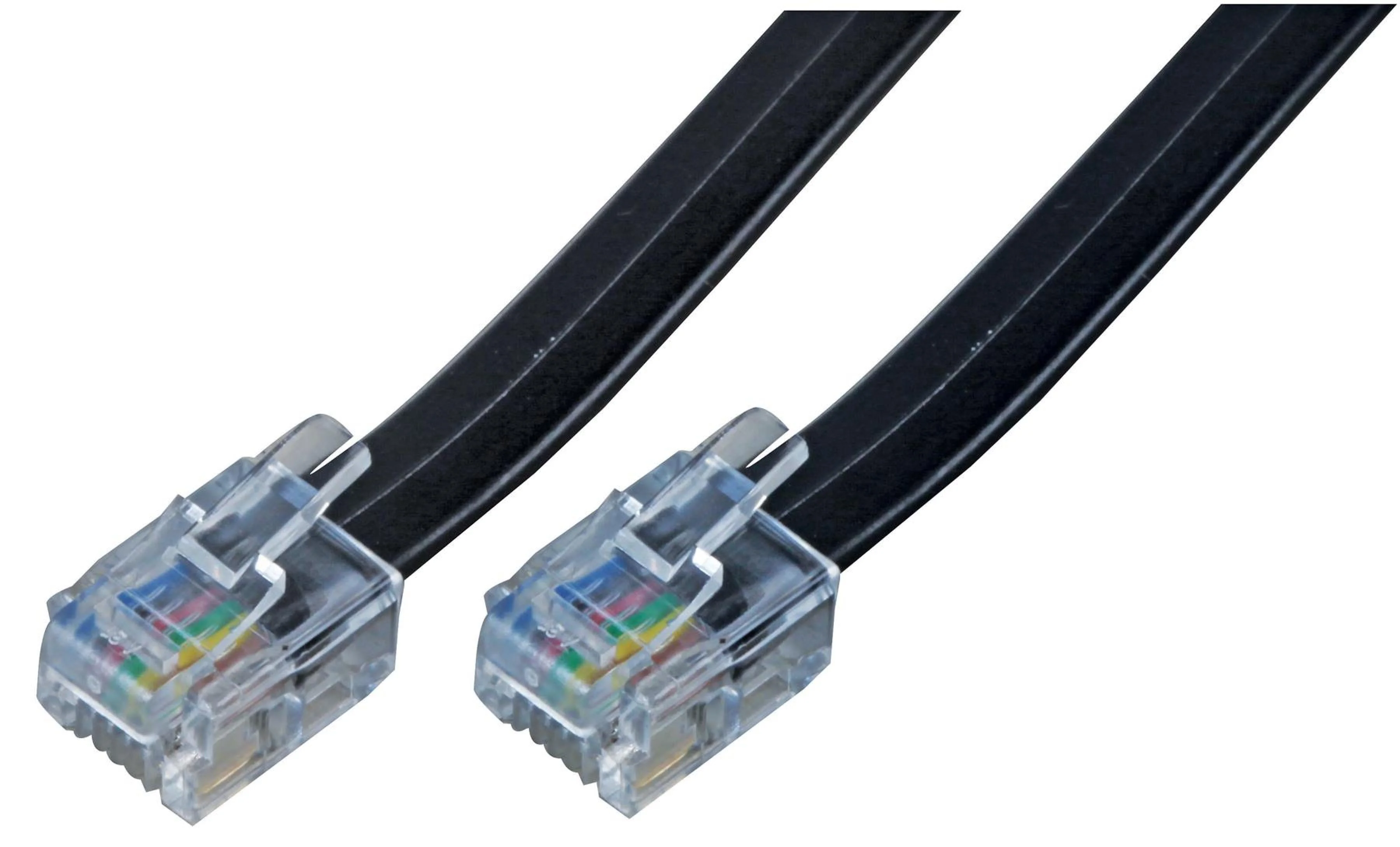
Step 5: Please go into “Point of Sale” and select your station. Click on the “No Sale” button and the cash drawer should open, and there shouldn’t be any additional permission prompt this time.
Note: The BT-100U is not compatible with cash drawers designed for Square systems. It is specifically meant for standard RJ11/RJ12 printer-driven cash drawers that connect to Windows PCs. If the Cash Drawer supports RJ11/RJ12, it should work with the dongle above.
