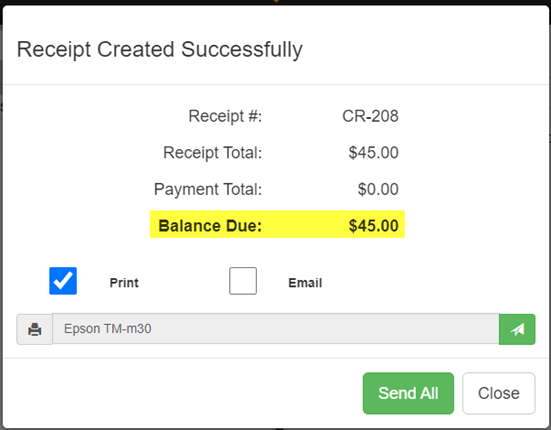
To allow a student to purchase an item without payment you will give them debt (unpaid item) to pay later.
*Note: For an item to be purchased with no payment you will need to select “Allow Payments?” when setting up the item in ASBWorks under Item Admin.
- Once you’re logged in, enter the individual’s name in the From section (the For section will auto fill after entering individual’s name)
- After adding the individual, select the item by choosing the category first (upper right side), and then the item by selecting the Sale button.
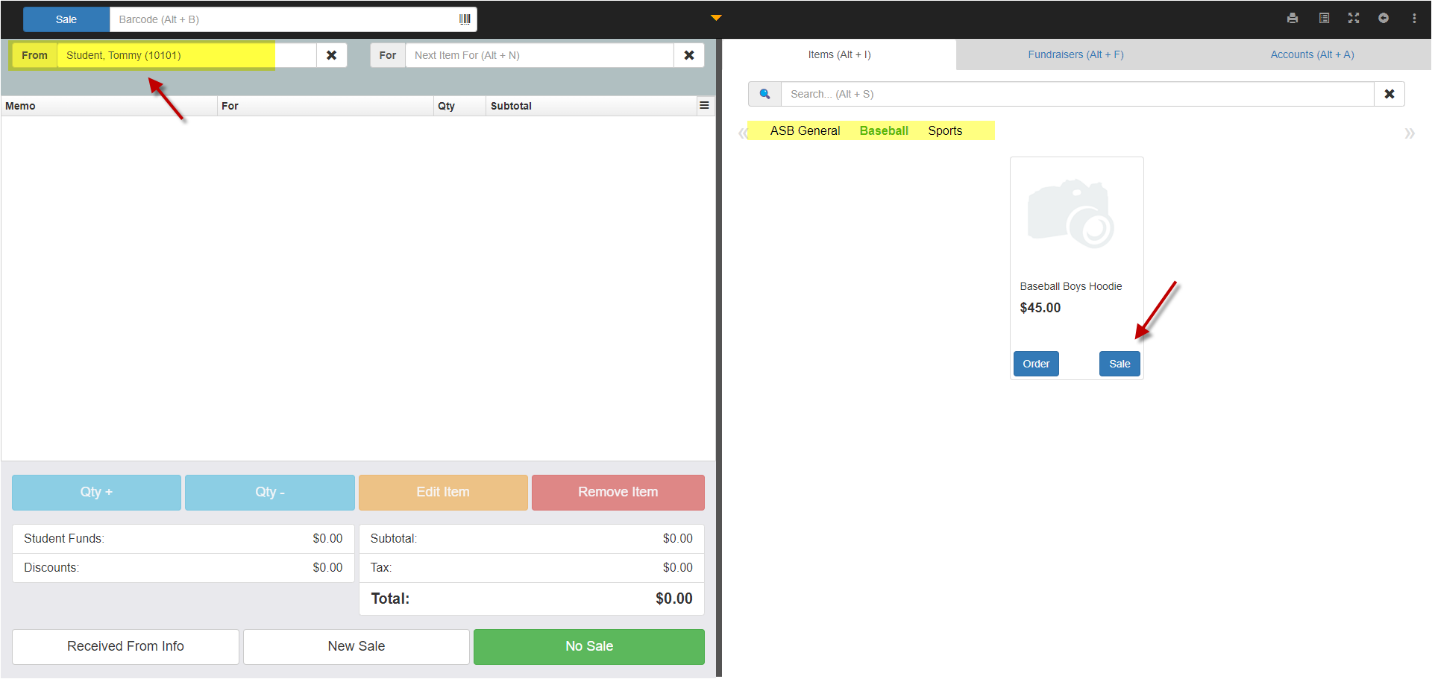
3. The item will populate to the receipt screen to the left
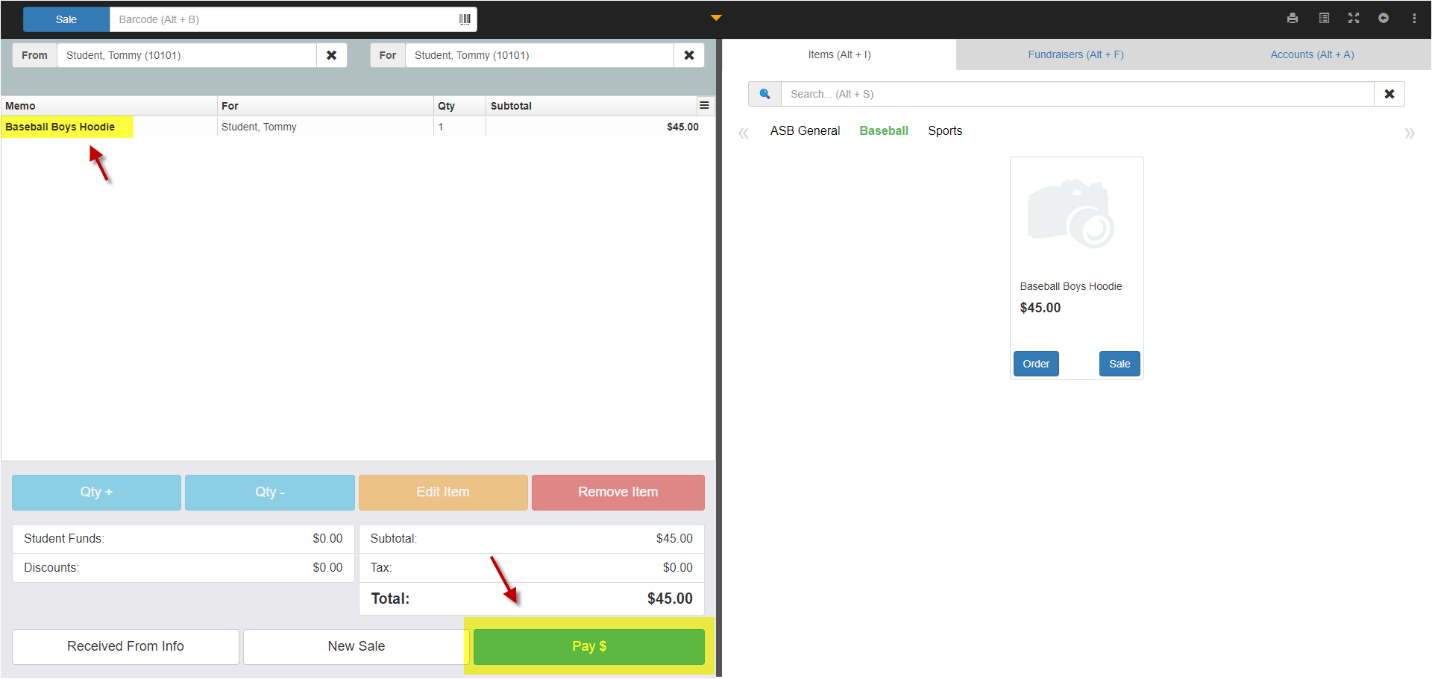
4. Click Pay $
5. Click Finish to create the transaction receipt
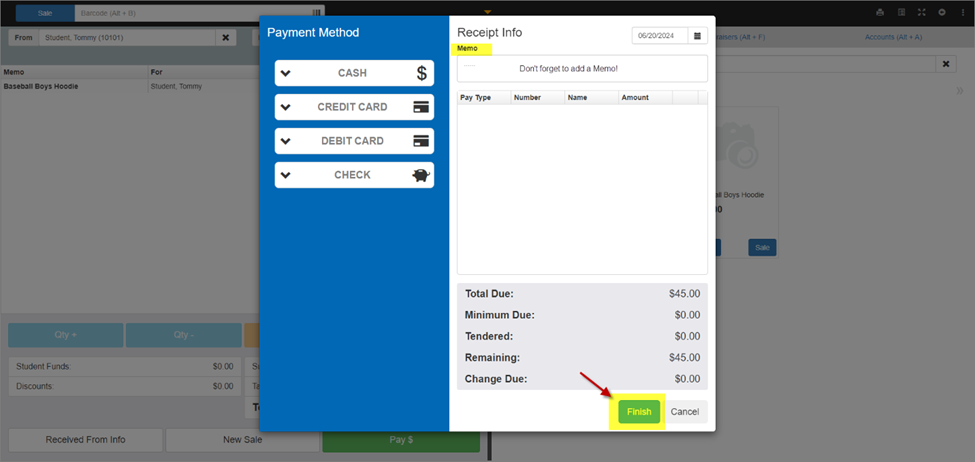
6. After clicking Finish, this will save a receipt with a Balance Due, creating an Unpaid Item receipt under the individual’s name until the remaining balance is paid.