
Part 1 - Installation
1. Connect Power
- Plug the USB-C power adapter from the A920Pro Payment Terminal into the port on the L920Pro-BE Communication Base labeled POWER.
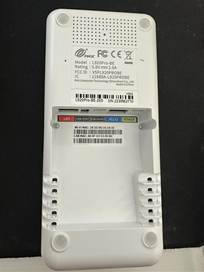
- Connect the adapter to a power outlet.
2. Connect to Network
- Plug the Ethernet cable into the port on the Communication Base labeled LAN.
- Ensure the Ethernet cable is connected to an active network port.
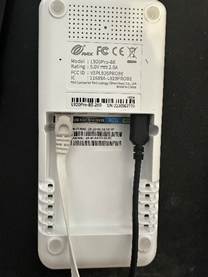
3. Position the Base
- Place the base on a stable, flat surface to complete installation.
Part 2 - Terminal Docking & Bluetooth Setup
1. Docking the A920Pro
- Position the A920Pro over the base until it is securely seated
- Press the power button on the right side of the A920Pro Payment Terminal to power ON the terminal.
- Once properly docked, the A920Pro will automatically begin charging.
2. Access A920 Pro Andriod Settings
- Swipe up from the bottom of the screen.
- Tap the circle (Home button).
- Tap the Settings app (gear icon).
- Enter the Settings password: pax9876@@
- Tap OK.
3. Pair the Payment Terminal to the Communication Base (Bluetooth)
- Enable Bluetooth on the A920Pro.
- Tap Connected devices à Tap Bluetooth à Enable Bluetooth
- Tap the word Bluetooth (to the left of the toggle) to open the Bluetooth device list.
- Under Available devices, select L920Pro-########## (the numbers match the Communication Base serial number printed on the bottom).
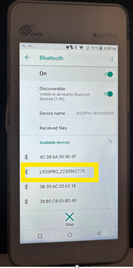
- Select the device to connect.
- When prompted for a PIN, enter: 9876
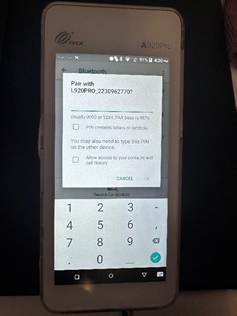
4. Connect the Payment Terminal to the Communication Base Wi-Fi
- Tap the green back arrow in the top left corner.
- Tap the green back arrow again to return to the main Settings screen.
- Enable Wi-Fi on the A920Pro.
- Tap Network and Internet à Tap Wi-Fi à Enable Wi-Fi toggle ON
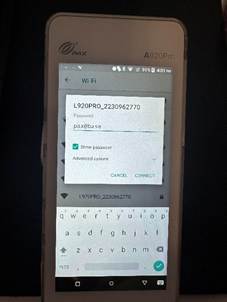
- A new Wi‑Fi network will appear using the base’s name + serial number.
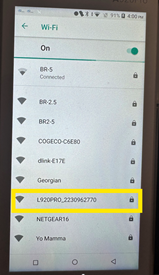
- Connect to this Wi‑Fi network using the password: pax@base
5. Launch KEV POS and Confirm Ready Status
- Tap the green back arrow once.
- Tap the green back arrow again to return to the main Settings screen.
- Tap the circle (Home button).
- Tap the KEV POS app icon.
- The screen will display Connecting.
- When complete, the screen will display the current time and “I Am Ready.”
Note: To ensure consistent performance, avoid using the device in areas with strong wireless interference.